Deploying a Python FastAPI App on AWS Lightsail (Ubuntu 24.04)
A single AWS Lightsail instance running Ubuntu 24.04 is all you need to host a Python FastAPI application in production, served over HTTPS on your own subdomain. This guide takes you from an empty AWS account to a FastAPI app running as a systemd service behind Nginx, with a free, auto-renewing Let’s Encrypt certificate.
Lightsail is a good fit for small and medium APIs because it bundles the server, a static IP and a simple firewall into one predictable monthly price, with a dashboard that is much easier to work with than a full EC2 setup. If you are deploying an internal API, a backend for a website or mobile app, or a side project, this setup will serve you well.
By the end you will have:
- An Ubuntu 24.04 Lightsail instance with a static IP that never changes
- A Python virtual environment with FastAPI, Uvicorn and your app’s dependencies
- The API running permanently in the background as a systemd service that restarts on crash or reboot
- Nginx in front of it, serving https://api.yourdomain.com with an SSL certificate that renews itself
What you need before you start:
- An AWS account with access to Lightsail
- A FastAPI app ready locally (a minimal example is included in Step 3 if you just want to follow along)
- A domain you control, with access to its DNS settings (needed only for the HTTPS step)
- Basic comfort with a terminal and SSH
Final architecture · one Lightsail instance
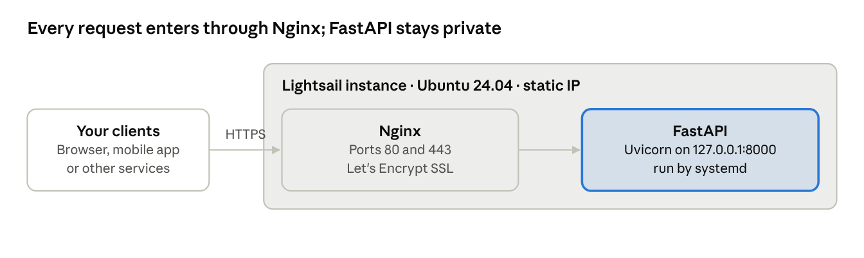
Clients reach only Nginx over HTTPS; Nginx forwards each request to FastAPI on a local port that is never exposed to the internet. This diagram also works as the post’s featured image.
Step 1: Create the Lightsail instance
Start with a Linux/Unix instance on the OS-only Ubuntu 24.04 LTS blueprint, in the AWS region closest to your users.
- Log in to the Lightsail console and click Create instance.
- Pick the region closest to your users (for example Mumbai, ap-south-1, for an audience in India).
- Under Select a platform, choose Linux/Unix.
- Under Select a blueprint, choose OS Only and then Ubuntu 24.04 LTS.
- Choose a plan. A simple FastAPI app runs comfortably on 1 GB RAM; pick 2 GB or more if your app loads machine-learning models, processes large files or runs a headless browser.
- Give the instance a clear name (for example fastapi-server) and click Create instance.
- Once the status shows Running, click the terminal icon to open the browser-based SSH session, or connect with your own SSH client.


Step 2: Attach a static IP
Attach a static IP immediately, before you point any DNS record or firewall rule at the server.
Every new Lightsail instance gets a public IP by default, but that address is dynamic: it changes when you stop and start the instance. Any client that calls your API, any firewall allow-list and any DNS A record pointing at the old address will silently break. A static IP is an address you create once and attach to the instance, and it stays the same for as long as you keep it.
- In the Lightsail console, open the Networking tab from the top menu.
- Click Create static IP.
- Make sure the location is the same AWS region as your Ubuntu instance (for example Mumbai). A static IP can only attach to an instance in its own region.
- Under Attach to an instance, select your new Ubuntu server.
- Give it a recognisable name, for example FastAPI-Static-IP.
- Click Create.
Note the address down. You will use it for the firewall rule, your curl tests and the DNS record later. Static IPs are free while attached to a running instance, but AWS charges for one that sits unattached, so release it if you ever delete the server.
Step 3: Install Python tooling and your app’s dependencies
Ubuntu 24.04 ships with Python 3.12, but not pip or venv, so install those first and then keep every library inside a virtual environment.
Update the system and install base tools
SSH into the server and run:
sudo apt update && sudo apt upgrade -y
sudo apt install python3-pip python3-venv git curl -y<br>
Create the project directory
mkdir -p ~/fastapi-app
cd ~/fastapi-app
Create the virtual environment and install packages
Ubuntu 24.04 blocks pip install into the system Python (the “externally managed environment” error), so a virtual environment is not optional here, it is required.
# Create the environment
python3 -m venv .venv

# Activate it
source .venv/bin/activate

# Upgrade pip inside the environment
pip install --upgrade pip

# Install FastAPI and the Uvicorn server
pip install fastapi uvicorn
Add whatever else your app needs in the same way (pip install sqlalchemy pymysql, for example), or install everything at once with pip install -r requirements.txt if your project has one.
Your prompt should now start with (.venv). If you open a new SSH session later, run source ~/fastapi-app/.venv/bin/activate again before working on the project.
Step 4: Upload your code, start the API and open the firewall
Get your code onto the server, start Uvicorn on all interfaces, and open port 8000 in the Lightsail firewall so you can test it from outside.
Copy your code to the server
If you just want to follow along, create a minimal app. Open a new file with the nano editor:
Paste this in:
from fastapi import FastAPI

app = FastAPI()


@app.get("/health")
def health():
    return {"status": "ok"}
- Press Ctrl + O, then Enter to save.
- Press Ctrl + X to exit.
For a real project, push your code to a Git repository and git clone it into ~/fastapi-app instead; future updates then become a simple git pull. You can also copy files from your computer with scp or an SFTP client such as FileZilla, using the SSH key you download from the Lightsail Account page.
Start the FastAPI server
Bind Uvicorn to 0.0.0.0 so it accepts connections from outside the machine, not just from localhost. Replace main:app with yourfile:app if your entry file has a different name.
# Make sure the environment is active
source ~/fastapi-app/.venv/bin/activate

# Start the server
uvicorn main:app --host 0.0.0.0 --port 8000
Open port 8000 in the Lightsail firewall
Lightsail only allows SSH (22) and HTTP (80) by default, so external requests to port 8000 simply time out until you add a rule.
- In the Lightsail console, click your instance and open its Networking tab.
- Under IPv4 Firewall, click Add rule.
- Set Application to Custom, Protocol to TCP and Port to 8000.
- Tick Restrict to IP address and enter only the IPs that should reach the API during testing, such as your own public IP.
- Click Create.
This rule is temporary. Once Nginx and HTTPS are in place (Step 6), you will remove it so the app is reachable only through Nginx.
Test the API
From your local machine, call the API using your static IP:
curl http://YOUR_LIGHTSAIL_STATIC_IP:8000/health
A response of {“status”:”ok”} means everything is wired up. You can also open http://YOUR_LIGHTSAIL_STATIC_IP:8000/docs in a browser to use FastAPI’s built-in interactive documentation.
There is one problem left: Uvicorn stops the moment you close the SSH window. The next step fixes that.
Step 5: Keep FastAPI running permanently with systemd
A systemd service is the reliable way to run Uvicorn in the background: it survives SSH disconnects, restarts after a crash, starts on boot and sends all output to the system journal.
Create the service file
sudo nano /etc/systemd/system/fastapi.service
Paste the configuration below. If your Ubuntu username is not ubuntu, change the User= line and every path to match.
[Unit]
Description=FastAPI application
After=network.target

[Service]
User=ubuntu
WorkingDirectory=/home/ubuntu/fastapi-app
EnvironmentFile=-/home/ubuntu/fastapi-app/.env
ExecStart=/home/ubuntu/fastapi-app/.venv/bin/uvicorn main:app --host 0.0.0.0 --port 8000
Restart=always
RestartSec=5

[Install]
WantedBy=multi-user.target
Save with Ctrl + O, Enter, then exit with Ctrl + X.
Two lines are worth explaining. ExecStart calls the uvicorn binary inside your virtual environment directly, so there is no need to activate it. EnvironmentFile loads settings and secrets such as DATABASE_URL=… or API keys from a .env file in the project folder, which keeps them out of your code; the leading – means the service still starts if the file does not exist.
Start and enable the service
# Reload systemd so it sees the new file
sudo systemctl daemon-reload
# Start the API in the background
sudo systemctl start fastapi
# Start it automatically on every boot
sudo systemctl enable fastapi
Manage the service
| Task | Command |
| Check that it is running | sudo systemctl status fastapi |
| Follow live logs | sudo journalctl -u fastapi -f |
| Restart after changing your code | sudo systemctl restart fastapi |
| Stop it completely | sudo systemctl stop fastapi |
A healthy service shows a green active (running) line followed by Uvicorn’s startup log. You can now close your SSH session and the API keeps serving requests.
Step 6: Serve the API over HTTPS with Nginx and Let’s Encrypt
Put Nginx in front of Uvicorn as a reverse proxy: Nginx owns ports 80 and 443 and the SSL certificate, and forwards decrypted requests to FastAPI on a private local port.
Uvicorn is an application server. It can terminate SSL itself, but Nginx handles certificates, HTTP-to-HTTPS redirects, timeouts and request buffering far better, and Certbot can configure and renew it automatically. In the commands below, replace api.yourdomain.com with your own subdomain.
6.1 Point your subdomain at the static IP
In your domain registrar’s DNS settings, add an A record:
| Type | Name | Value | TTL |
| A | api | YOUR_LIGHTSAIL_STATIC_IP | 600 seconds or default |
Wait until it resolves before continuing; Let’s Encrypt cannot issue a certificate otherwise. Check with:
6.2 Open HTTPS in the Lightsail firewall
On the instance’s Networking tab, add a rule for HTTPS (TCP 443). Leave HTTP (TCP 80) open as well, and do not restrict it by IP: Let’s Encrypt’s validation servers must be able to reach port 80 to issue and renew your certificate.
6.3 Make Uvicorn listen only locally
Now that Nginx will be the public entry point, FastAPI no longer needs to be reachable from outside. Edit the service:
sudo nano /etc/systemd/system/fastapi.service
Change the ExecStart line to bind to 127.0.0.1:
ExecStart=/home/ubuntu/fastapi-app/.venv/bin/uvicorn main:app –host 127.0.0.1 –port 8000 –proxy-headers
Then reload and restart:
sudo systemctl daemon-reload
sudo systemctl restart fastapi
Once HTTPS works (step 6.6), go back to the Lightsail firewall and delete the port 8000 rule. All traffic should go through Nginx.
6.4 Install Nginx and Certbot
sudo apt install nginx certbot python3-certbot-nginx -y
6.5 Create the Nginx site
sudo nano /etc/nginx/sites-available/fastapi
Paste:
server {
    listen 80;
    server_name api.yourdomain.com;

    location / {
        proxy_pass http://127.0.0.1:8000;
        proxy_http_version 1.1;
        proxy_set_header Host $host;
        proxy_set_header X-Real-IP $remote_addr;
        proxy_set_header X-Forwarded-For $proxy_add_x_forwarded_for;
        proxy_set_header X-Forwarded-Proto $scheme;

        # Raise this if some requests take longer than 60 seconds
        proxy_read_timeout 120s;
    }
}
The proxy_read_timeout line matters for slow endpoints such as report generation or file processing. Without it, any request that runs longer than Nginx’s default 60 seconds returns a 504 Gateway Timeout, even though FastAPI is still working.
Enable the site, test the configuration and reload:
sudo ln -s /etc/nginx/sites-available/fastapi /etc/nginx/sites-enabled/
sudo nginx -t
sudo systemctl reload nginx
nginx -t should report that the syntax is ok and the test is successful. At this point http://api.yourdomain.com/docs should load over plain HTTP.
6.6 Issue the Let’s Encrypt certificate
sudo certbot –nginx -d api.yourdomain.com
Certbot asks for an email address (for expiry warnings) and for you to accept the terms. It then validates your domain, installs the certificate and rewrites your Nginx site to listen on 443 and redirect HTTP to HTTPS.
6.7 Confirm automatic renewal
Let’s Encrypt certificates last 90 days. Certbot installs a systemd timer that renews them automatically; confirm it works with a dry run:
sudo certbot renew --dry-run
systemctl list-timers | grep certbot
6.8 Test over HTTPS
curl https://api.yourdomain.com/health
Point your frontend, mobile app or other services at the new https:// URL, and you are done.
Troubleshooting
| Symptom | Likely cause | Fix |
| curl to port 8000 times out | Firewall rule missing, or your IP is not in the allowed list | Check the Lightsail firewall rule and your current public IP |
| error: externally-managed-environment on pip install | Installing into system Python on Ubuntu 24.04 | Activate .venv first |
| ModuleNotFoundError when the service starts | Package installed outside the virtual environment | Activate .venv and reinstall, then restart the service |
| systemctl status shows failed | Wrong path, username or module:app name in the service file | Check sudo journalctl -u fastapi -n 50 for the exact error |
| Service keeps restarting under load | Instance out of memory | Move to a plan with more RAM, or add a swap file |
| 502 Bad Gateway from Nginx | Uvicorn is not running on 127.0.0.1:8000 | sudo systemctl status fastapi and restart it |
| 504 Gateway Timeout on slow requests | Nginx’s 60-second default timeout | Raise proxy_read_timeout as in step 6.5 |
| Certbot fails validation | DNS not propagated yet, or port 80 closed | Confirm with nslookup and the Lightsail firewall |
Wrapping up
You now have a FastAPI app running on a single Lightsail instance, with a static IP, a self-healing systemd service and HTTPS through Nginx and Let’s Encrypt. Every update from here is the same short loop: change the code, git pull (or edit the file), then sudo systemctl restart fastapi.
A few natural next steps: add authentication (an API key header or OAuth2) so only your own clients can call the API, enable Lightsail’s automatic daily snapshots so you can roll back a broken server in minutes, and run Uvicorn with several workers (–workers 2) once traffic grows.